Fix iMessage/FaceTime & Push Notifications On Hacktivated iPhone 4/3GS
Fix iMessage/FaceTime & Push Notifications On Hacktivated iPhone 4/3GS
iOS 5 brought with it a plethora of
new features, including the infamous
iMessage
that allowed users to communicate with any other iOS 5 device over a
WiFi/mobile data connection, effectively eliminating the cost of carrier
SMS plans. While highly appreciated and useful, iMessage was something
jailbroken users remained envious of, particularly those on unofficial
carriers, since iMessage requires activation with iTunes before it can
be used. Hacktivating your iOS 5 device bypasses that, and while you can
use your
iPhone 4
or 3GS, features like iMessage, FaceTime and push notifications remain
unavailable unless you’re willing to pay for solutions like PushFix and
MiTime.
This all changed with SAM (Subscriber Artificial Module), which
allows you to activate your iPhone using legitimate certificates
generated through iTunes. Advantage? You get fully working push
notifications, FaceTime and iMessage (iOS 5 only) without needing to
spend a single buck. Read on after the jump to find out how.
Before we begin, allow me to explain a little how this
works. iTunes activates your
new iPhone using your official (supported) carrier’s IMSI, taken from
the SIM
card. When you hacktivate the device for use with unofficial carrier,
this process is bypassed by running a daemon constantly in the
background, fooling iTunes into believing that the device is already
activated. While there are numerous methods and tools available for
hacktivation, SAM, a free package on Cydia, spoofs a fake IMSI, making
iTunes believe that the device is running on an official carrier’s SIM,
thus making the program generate legitimate activation certificates.
While this fixes the
‘push notifications not working’ issue, on iOS 5, it also fixes FaceTime and
iMessage. You also get considerably better battery
life, thanks to skipping the activation daemon constantly running in background (even better for ultrasn0w unlockers).
The process described here was tested on
iPhone 4
(GSM version) jailbroken using sn0wbreeze 2.8b8, running iOS 5.0. The
usual warning applies; while fully tested, proceed with this method at
your own risk. AddictiveTips cannot be held liable for any damage
whatsoever.
You will need a jailbroken, already-hacktivated iPhone 4/iPhone 3GS, with Cydia up and running.
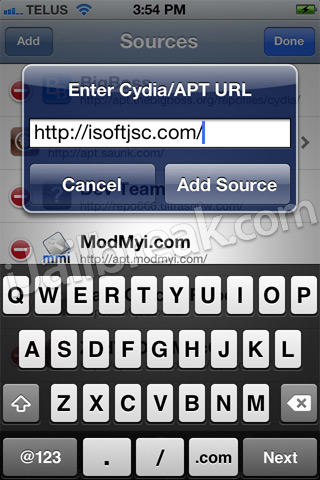
First, launch Cydia, head on to the
Manage tab and add the following source.

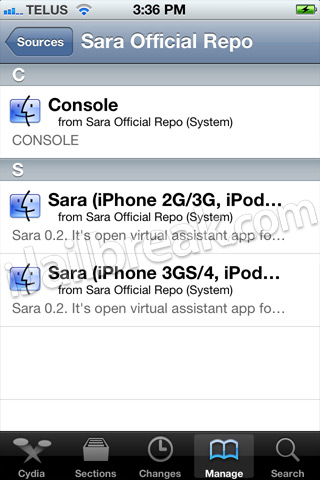
Once your new repository is added, search for
SAM, or find the package in the repository manually, and install it.

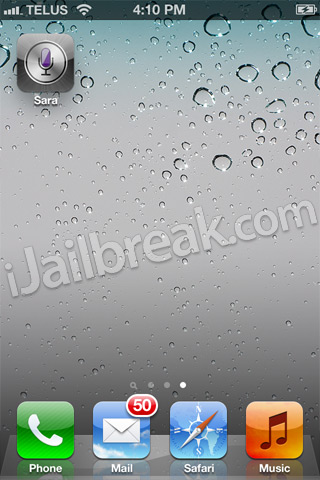
With SAM installed, you’ll find a SAMPrefs icon on your
iPhone’s Springboard. Launch SAMPrefs and navigate to
Utilities menu.

Under
Utilities, tap the option that says
“Revert Lockdown to Stock”. This will deactivate your hacktivation, but don’t worry about it; your
iPhone will remain functional.

A message will pop up claiming that
Stockification was a success. Hit
OK to dismiss.

Next, on the same screen, hit the
De-Activate iPhone (clear push) button. Another message will pop up, confirming that the phone has been deactivated.

Now, if you had your iPhone already connected to your PC, remove the USB cable and reconnect. Otherwise, just connect it with
iTunes
and let it activate (one sync is all it takes with SAM package
installed). Also, at this point, if iPusher app was already installed on
your iPhone, remove it.
At this point, the activation is basically complete and you can verify that by navigating to
Settings > SAM > More Information. If it says
Wildcard Activated, you’re good to go.

Once your iPhone is activated, launch
SAMPrefs again, tap
Utilities and you’ll notice that the menu displayed is different from the last time around. Hit
Backup Activation, followed by
Restore Activation. A success popup should follow.

From here on begins the part that requires patience (bothered me, at least). Reboot your iPhone and then let it
sync with iTunes. Once that is done, install the free iPusher app from App Store [
iTunes link].

Reboot your iPhone again (yeah, that’s two reboots before you can
actually use it – I didn’t like that, either) and sync once more with
iTunes. Also, ensure that you have a working
WiFi connection with active internet access. Then, launch iPusher, allow it to send you push notifications, and tap the
Test Push Notifications button. Should you see the below screen, breathe a sigh of relief, for everything works!

This should basically fix everything, but to be sure, it’s better
that you turn off both iMessage and FaceTime, and reactivate them. To do
that, go to
Settings > Phone and turn off
FaceTime.
For iMessage, follow Settings > Messages and turn off iMessage. Now,
reboot your iPhone again, turn both these features back on and they
should be good to go.

It’s worth mentioning that in
Settings, both
iMessage and
FaceTime still show
‘activation unsuccessful’. They do work, nevertheless.

Now that you can use your otherwise-hacktivated iPhone 4/iPhone 3GS
back to their full potential, do share the goodness with your friends
and loved ones. Please note that this method works for iPhone 4 and
iPhone 3GS only, running iOS 5 on an unofficial carrier. Also, you won’t
need these settings if you’re using a factory-unlocked phone, since
they don’t need to be hacktivated at all anyway.
http://www.addictivetips.com/mobile/fix-imessage-facetime-push-notifications-on-hacktivated-iphone-4-3gs/





 df
df

 Birthday - 13/12/1964
Death - 02/05/1997
bye bye hide
Birthday - 13/12/1964
Death - 02/05/1997
bye bye hide
