how to import movies to vlc player on iphone
1 using i-funbox to access file manager on idevice
2 locate to /private/var/mobile/Media/vlc4iphone/
3 copy and past to media file
done !
Showing posts with label iphone. Show all posts
Showing posts with label iphone. Show all posts
Saturday, August 18, 2012

Monday, April 2, 2012
fix iTunes error 3194 ios 5.0.1 100% work!!!
ເພື່ອນໆຄົງຈະເມື່ອຍຢ່າງແຮງ ກ່ຽວກັນການທີ່ upgrade or downgrade ບໍ່ຜ່ານຍ້ອນ
error 3194 ມີຫຼາຍຫົວຂໍ້ ທີ່ໄດ້ເວົ້າເຖິງບັນຫານີ້ ທີ່ແທ່ຈິງແມ່ນເລື່ອງຂອງ server ຫຼື internet ຫຼື address ຂອງ apple ທີ່ມັນບໍ່ອະນູຍາດໃຫ້ restore firmware ນັ້ນ
ລວມເຖິງການທີ່ເອົາ tinyumbrella ເຂົ້າມາຊ່ວຍໃນການແກ້ໃຂ ແຕ່ກໍ່ບໍ່ໄດ້ຜົນ
ມີການໄປປັບຄ່າຂອງ host file " C:\Windows\System32\drivers\etc" ໃຫ້ເອົາ
#74.208.10.249 gs.apple.com ເຂົ້າໃສ່ ຫຼື ລຶບອອກ ທາງອອກເລົ່ານີ້ລ້ວນແລ້ວແຕ່ບໍ່ໄດ້ຜົນ
ຂ້າພະເຈົ້າຂໍແນະນຳ ໃຫ້ນຳໃຊ້ iFaith ເປັນເຄື່ອງມີທີ່ສ້າງ Custom firmware ແລະ sign firmware ໂດຍການເອົາຄ່າທີ່ເຮົາໄດ້ເກັບໄວ້ ຈາກ tinyumbrella
ແນວໃດກະແນວໃຫ້ເຂົ້າໃຈວ່າ ສິ່ງທີ່ຈຳເປັນຕ້ອງມີຄື :
- iphone
- itunes version 10.6 ແລ້ວແຕ່ເດີ້ ແຕ່ໂຕນີ້ກະຜ່ານ
- tinyumbrella
- iFaith ໂຫຼດ http://downloads.ih8sn0w.com/iFaith-v1.4.2_windows.zip
- ios 5.0.1
ແນະນຳລາຍລະອຽດລິ້ງທາງລຸ່ມ ເພື່ອເປັນວິທີການ ແລະ ຂັ້ນຕອນໃນການປະຕິບັດ
http://applesiam.com/full-review-%E0%B8%A7%E0%B8%B4%E0%B8%98%E0%B8%B5-downgrade-%E0%B8%88%E0%B8%B2%E0%B8%81-ios-5-1-%E0%B9%84%E0%B8%9B-5-0-1-by-ifaith/

error 3194 ມີຫຼາຍຫົວຂໍ້ ທີ່ໄດ້ເວົ້າເຖິງບັນຫານີ້ ທີ່ແທ່ຈິງແມ່ນເລື່ອງຂອງ server ຫຼື internet ຫຼື address ຂອງ apple ທີ່ມັນບໍ່ອະນູຍາດໃຫ້ restore firmware ນັ້ນ
ລວມເຖິງການທີ່ເອົາ tinyumbrella ເຂົ້າມາຊ່ວຍໃນການແກ້ໃຂ ແຕ່ກໍ່ບໍ່ໄດ້ຜົນ
ມີການໄປປັບຄ່າຂອງ host file " C:\Windows\System32\drivers\etc" ໃຫ້ເອົາ
#74.208.10.249 gs.apple.com ເຂົ້າໃສ່ ຫຼື ລຶບອອກ ທາງອອກເລົ່ານີ້ລ້ວນແລ້ວແຕ່ບໍ່ໄດ້ຜົນ
ຂ້າພະເຈົ້າຂໍແນະນຳ ໃຫ້ນຳໃຊ້ iFaith ເປັນເຄື່ອງມີທີ່ສ້າງ Custom firmware ແລະ sign firmware ໂດຍການເອົາຄ່າທີ່ເຮົາໄດ້ເກັບໄວ້ ຈາກ tinyumbrella
ແນວໃດກະແນວໃຫ້ເຂົ້າໃຈວ່າ ສິ່ງທີ່ຈຳເປັນຕ້ອງມີຄື :
- iphone
- itunes version 10.6 ແລ້ວແຕ່ເດີ້ ແຕ່ໂຕນີ້ກະຜ່ານ
- tinyumbrella
- iFaith ໂຫຼດ http://downloads.ih8sn0w.com/iFaith-v1.4.2_windows.zip
- ios 5.0.1
ແນະນຳລາຍລະອຽດລິ້ງທາງລຸ່ມ ເພື່ອເປັນວິທີການ ແລະ ຂັ້ນຕອນໃນການປະຕິບັດ
http://applesiam.com/full-review-%E0%B8%A7%E0%B8%B4%E0%B8%98%E0%B8%B5-downgrade-%E0%B8%88%E0%B8%B2%E0%B8%81-ios-5-1-%E0%B9%84%E0%B8%9B-5-0-1-by-ifaith/
Thursday, March 15, 2012
How To: Install SARA Cydia Tweak (Siri Clone) To iPhone, iPod Touch Or iPad
How To: Install SARA Cydia Tweak (Siri Clone) To iPhone, iPod Touch Or iPad
When Siri was first released for the iPhone 4S it left many people wondering if Apple would release Siri for older generation iOS devices. Now, a few months later it has become obvious that Apple will not be releasing Siri for older generation iOS devices and thus it is up to the Jailbreaking community to develop a suitable alternative.
Earlier today we told you about a Siri clone dubbed SARA that has been claimed to be one of the best and most innovative Siri clones to date. It is not only an accurate, but extends Siri’s default functionality dramatically. If you are interested in getting Siri on your:
- iPhone 4, iPhone 3GS, iPhone 3G, iPhone 2G
- iPod Touch 4G, iPod Touch 3G, iPod Touch 2G
- iPad 2G, iPad 1G
Note: The SARA Cydia tweak does not natively integrate with your iOS device at this time (it is an application that must be launched from your SpringBoard). Additionally, for all of you wondering, the SARA Cydia tweak is based on Spire and uses a 3rd party server for most requests. This means that there is a possibility your personal information sent through Siri could be being logged (even though the author notes no information will ever be logged). Use SARA at your own risk.
How To Install SARA Through Cydia
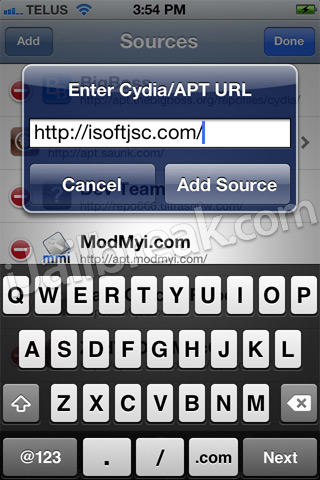
Step 1) – The first thing you will need to do is Jailbreak your iPhone, iPod Touch or iPad running the iOS 5.0 or iOS 5.0.1 firmware. For more information on how to Jailbreak your iOS device please go to iJailbreak’s How To Jailbreak Section.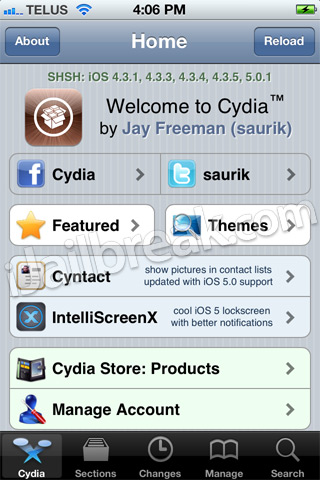
http://isoftjsc.com
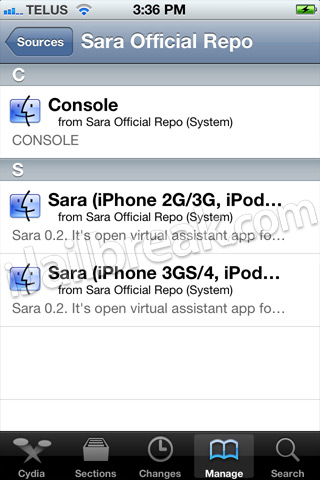
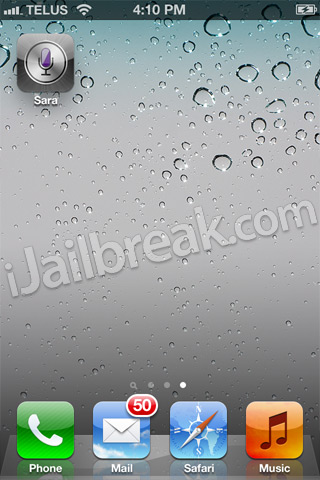
Step 4) – Once you have installed SARA to your iPhone, iPod Touch or iPad you will notice a SARA icon on your SpringBoard (homescreen).
Manually Install SARA Siri Clone
Prerequisite: You must have the afc2add Cydia package installed on your iPhone, iPod Touch or iPad before continuing the steps to manually install the SARA Cydia tweak.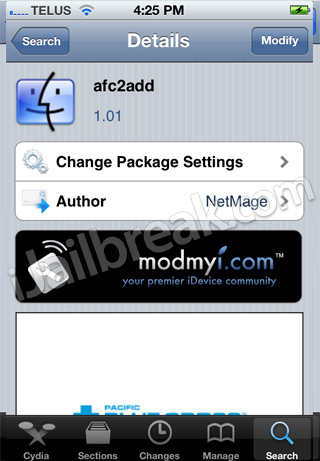
Step 2) - Next you will need to download a file-system editor program for your Windows or Mac OS X computer. We recommend a program called iExplorer, which can be downloaded by clicking here. The last file you will need to download is the SARA.deb 0.3 file. This can be downloaded by clicking here.
Step 3) – With the required files downloaded you will need to launch your file-system editor program and go to the following directory:
private\var\root\Media\Cydia\AutoInstall
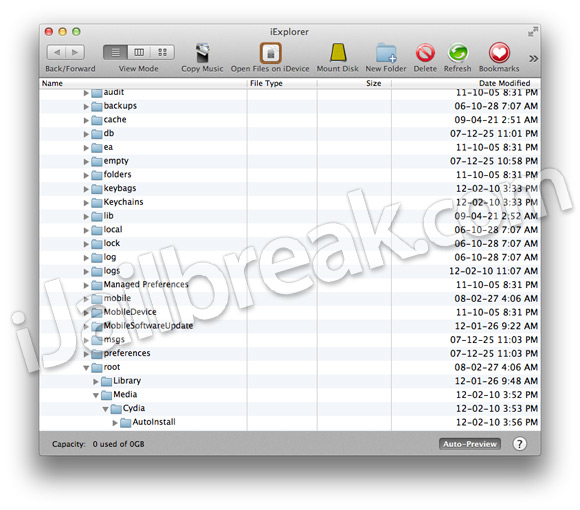
Step 4) – When you are in the directory shown above you will need to drop the SARA.deb file you downloaded earlier into the AutoInstall folder.
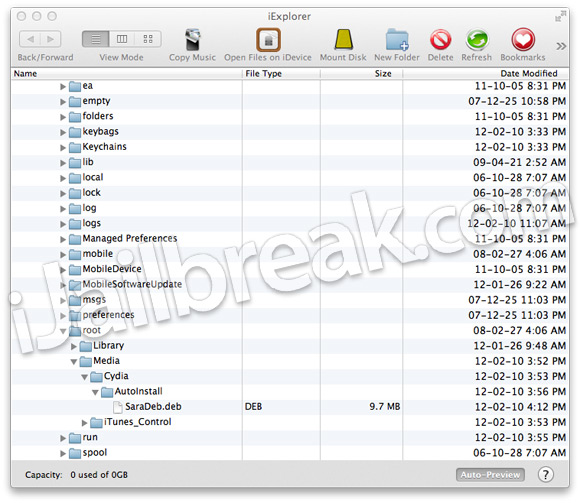
Congratulations you have just gotten Siri on your iPhone, iPod Touch or iPad! For more how to guides like the one you just followed please visit iJailbreak’s How To Section. Additionally, please leave any further questions or thoughts in the comments section below…
Saturday, February 18, 2012
Fix iMessage/FaceTime & Push Notifications On Hacktivated iPhone 4/3GS
Fix iMessage/FaceTime & Push Notifications On Hacktivated iPhone 4/3GS
Fix iMessage/FaceTime & Push Notifications On Hacktivated iPhone 4/3GS
This all changed with SAM (Subscriber Artificial Module), which allows you to activate your iPhone using legitimate certificates generated through iTunes. Advantage? You get fully working push notifications, FaceTime and iMessage (iOS 5 only) without needing to spend a single buck. Read on after the jump to find out how.
Before we begin, allow me to explain a little how this works. iTunes activates your new iPhone using your official (supported) carrier’s IMSI, taken from the SIM card. When you hacktivate the device for use with unofficial carrier, this process is bypassed by running a daemon constantly in the background, fooling iTunes into believing that the device is already activated. While there are numerous methods and tools available for hacktivation, SAM, a free package on Cydia, spoofs a fake IMSI, making iTunes believe that the device is running on an official carrier’s SIM, thus making the program generate legitimate activation certificates. While this fixes the ‘push notifications not working’ issue, on iOS 5, it also fixes FaceTime and iMessage. You also get considerably better battery life, thanks to skipping the activation daemon constantly running in background (even better for ultrasn0w unlockers).
The process described here was tested on iPhone 4 (GSM version) jailbroken using sn0wbreeze 2.8b8, running iOS 5.0. The usual warning applies; while fully tested, proceed with this method at your own risk. AddictiveTips cannot be held liable for any damage whatsoever.
You will need a jailbroken, already-hacktivated iPhone 4/iPhone 3GS, with Cydia up and running.
First, launch Cydia, head on to the Manage tab and add the following source.

Once your new repository is added, search for SAM, or find the package in the repository manually, and install it.

With SAM installed, you’ll find a SAMPrefs icon on your iPhone’s Springboard. Launch SAMPrefs and navigate to Utilities menu.

Under Utilities, tap the option that says “Revert Lockdown to Stock”. This will deactivate your hacktivation, but don’t worry about it; your iPhone will remain functional.

A message will pop up claiming that Stockification was a success. Hit OK to dismiss.

Next, on the same screen, hit the De-Activate iPhone (clear push) button. Another message will pop up, confirming that the phone has been deactivated.

Now, if you had your iPhone already connected to your PC, remove the USB cable and reconnect. Otherwise, just connect it with iTunes and let it activate (one sync is all it takes with SAM package installed). Also, at this point, if iPusher app was already installed on your iPhone, remove it.
At this point, the activation is basically complete and you can verify that by navigating to Settings > SAM > More Information. If it says Wildcard Activated, you’re good to go.

Once your iPhone is activated, launch SAMPrefs again, tap Utilities and you’ll notice that the menu displayed is different from the last time around. Hit Backup Activation, followed by Restore Activation. A success popup should follow.

From here on begins the part that requires patience (bothered me, at least). Reboot your iPhone and then let it sync with iTunes. Once that is done, install the free iPusher app from App Store [iTunes link].

Reboot your iPhone again (yeah, that’s two reboots before you can actually use it – I didn’t like that, either) and sync once more with iTunes. Also, ensure that you have a working WiFi connection with active internet access. Then, launch iPusher, allow it to send you push notifications, and tap the Test Push Notifications button. Should you see the below screen, breathe a sigh of relief, for everything works!

This should basically fix everything, but to be sure, it’s better that you turn off both iMessage and FaceTime, and reactivate them. To do that, go to Settings > Phone and turn off FaceTime. For iMessage, follow Settings > Messages and turn off iMessage. Now, reboot your iPhone again, turn both these features back on and they should be good to go.

It’s worth mentioning that in Settings, both iMessage and FaceTime still show ‘activation unsuccessful’. They do work, nevertheless.

Now that you can use your otherwise-hacktivated iPhone 4/iPhone 3GS back to their full potential, do share the goodness with your friends and loved ones. Please note that this method works for iPhone 4 and iPhone 3GS only, running iOS 5 on an unofficial carrier. Also, you won’t need these settings if you’re using a factory-unlocked phone, since they don’t need to be hacktivated at all anyway.
http://www.addictivetips.com/mobile/fix-imessage-facetime-push-notifications-on-hacktivated-iphone-4-3gs/
Wednesday, January 18, 2012
How to Fix iBooks Error After iOS 5.0.1 Jailbreak: iBooksFix2 via Cydia
Some people are running into the iBooks ‘configuration error’ after their untethered iOS 5.0.1 jailbreak:
after installed ibooks do not open ( do not open application ) until you finish iBooksFix2
Here’s How to Fix the iBooks Error via Cydia


There is a problem with the configuration of your iPhone. Please restore with iTunes and reinstall iBooks.In order to fix this, you can install iBooksFix2, from the insanelyi.com repo via Cydia. This fix is an updated version of iBooks Fix we previously detailed, which was introduced during the days of the Greenp0ison 4.2.1 jailbreak.

after installed ibooks do not open ( do not open application ) until you finish iBooksFix2
Here’s How to Fix the iBooks Error via Cydia
1. Launch Cydia –> Manage –> Sources –> Edit –> Add
2. Enter the following repository: http://repo.insanelyi.com , tap Add Source.
3. Search for’iBooksFix2’ and install it.

http://www.iphoneincanada.ca/how-to/how-to-fix-ibooks-error-after-ios-5-0-1-jailbreak-ibooksfix2-via-cydia/
Monday, January 16, 2012
Creat Apple ID without Credit Card ວິທີສ້າງ itunes ID ແບບລະອຽດ Tutorial
Tutorial ສ້າງ itunes ID without Credit Card
ສະບາຍດີເພື່ອນມິດສະຫາຍທັງຫຼາຍແລະໜ້ອຍ
ອັນນີ້ແມ່ນການສາທິດ ການສ້າງ Itunes ID ໂດຍບໍ່ໃຊ້ບັດເຄດິດ
ເລີ່ມເລີຍ
ກ່ອນເລີ່ມ ຄືຕ້ອງມີ Email Account ເປັນຂອງຕົນເອງກ່ອນ ຖ້າຫາກບໍ່ມີແນະນຳໄປຕັ້ງ ອາດຈະ gmail,yahoo,hotmail, ແລ້ວແຕ່ເນາະ
ຕ້ອງໄດ້ຕິດຕັ້ງ itunes ກ່ອນ ໂດຍໄປທີ່ http://www.apple.com/itunes/download/ ດາວໂຫຼດແລ້ວຕິດຕັ້ງ
1 ຂັ້ນຕອນທຳອິດເປີດ itunes ແລ້ວໄປຫາ 1 itunes store > 2 search ..... ຫາ 3 free games > 4 ໃຫ້ກົດ free ຢູ່ກອງ apps ຫຼື ເກມ ທີ່ເຮົາຈະໂຫລດ > ຈະມີ windown itunes popup ຂຶ້ນມາ ດັ່ງຮູບແລ້ວ ໃຫ້ ກົດ Create New Account ຕາມຮູບທາງລຸ່ມ
 =============================================================
2 ຕາມຮູບທາງລຸ່ມເລີຍ Continue
 ==========================================================================
3 ໃຫ້ຕິກເອົາ i have read and agree ແລ້ວກົດ i agree ຕາມຮູບ
 4 fill email , password , verify password ໃຫ້ລອກໄປຕາມຮູບນະລະສ່ວນ email password ຢ່າໄປຕາມເດີ້ ຫືໆ ຢ່າໄປຫຼົງເອົານຳໃດ ຫິຫິ

===================================================================
5 ຂັ້ນຕອນ fill Address ຖືວ່າສຳຄັນຫຼາຍ ເພາະວ່າ form ບ້ານເມືອງຕ້ອງໃຫ້ຖືກຕ້ອງຖ້າຊັ້ນແນວໃດກໍ່ບໍ່ຜ່ານ
Payment Type ໃຫ້ເລືອກເອົາ None ດັ່ງຮູບ
ສ່ວນລາຍລະອຽດໃຫ້ copy ເອົາຕາມຮູບທາງລຸ່ມເລຍ ຖ້າແລ້ວລະໃຫ້ກົດ Create Apple ID

=====================================================================
6 ຢືນຢັນ Email ໃຫ້ໄປເປີດ Inbox ຂອງ email
 =====================================================================
7 ໃຫ້ໄປເປີດ email ຂອງເຮົາ ຢູ່ໃນ inbox ໃຫ້ກົດ Verify Now ມັນຈະ ພາເຮົາໄປ itunes ຄືນ

======================================================================
8 ເຮົາຈະຖືກມາ website apple ແລ້ວ ໃຫ້ເຮົາເອົາ email ທີ່ເປັນຕັ້ງເປັນ id ແລະ password ( ທີ່ມີຕິວໃຫຍ່ ເປັນຕົວເລີ່ມຕົ້ນ )
 ===========================================================================
9 ID ຖືກຢຶນຢັນ ເມື່ອເອົາ email ແລະ password ຖືກແລ້ວ ມັນຈະບອກວ່າ ID ໄດ້ຖືກຢືນຢັນແລ້ວ
ໃຫ້ກົດ Return to the Store ເພື່ອກັບໄປຫາ Itunes store

========================================================================
10 ຖ້າໃຜໃຊ້ Mozilla Firefox ມັນຈະປະກົດ window ນີ້ຂຶ້ນມາເພື່ອນຳໄປສູ່ itunes
ໃຫ້ກົດ OK

=====================================================
11 ສຳເລັດການຕິດຕັ້ງຖ້າເກີດ itunes show ແບບຮູບດັ່ງທາງລຸ່ມນີ້

===================================================================================
ສະບາຍດີເພື່ອນມິດສະຫາຍທັງຫຼາຍແລະໜ້ອຍ
ອັນນີ້ແມ່ນການສາທິດ ການສ້າງ Itunes ID ໂດຍບໍ່ໃຊ້ບັດເຄດິດ
ເລີ່ມເລີຍ
ກ່ອນເລີ່ມ ຄືຕ້ອງມີ Email Account ເປັນຂອງຕົນເອງກ່ອນ ຖ້າຫາກບໍ່ມີແນະນຳໄປຕັ້ງ ອາດຈະ gmail,yahoo,hotmail, ແລ້ວແຕ່ເນາະ
ຕ້ອງໄດ້ຕິດຕັ້ງ itunes ກ່ອນ ໂດຍໄປທີ່ http://www.apple.com/itunes/download/ ດາວໂຫຼດແລ້ວຕິດຕັ້ງ
1 ຂັ້ນຕອນທຳອິດເປີດ itunes ແລ້ວໄປຫາ 1 itunes store > 2 search ..... ຫາ 3 free games > 4 ໃຫ້ກົດ free ຢູ່ກອງ apps ຫຼື ເກມ ທີ່ເຮົາຈະໂຫລດ > ຈະມີ windown itunes popup ຂຶ້ນມາ ດັ່ງຮູບແລ້ວ ໃຫ້ ກົດ Create New Account ຕາມຮູບທາງລຸ່ມ
2 ຕາມຮູບທາງລຸ່ມເລີຍ Continue
3 ໃຫ້ຕິກເອົາ i have read and agree ແລ້ວກົດ i agree ຕາມຮູບ
Password ໃຫ້ໃສ່ 8ໂຕ (ຕົວໜັງສືໍ + ຕົວເລກ ) ແລະທີ່ສຳຄັນຕົວໜັງສືທຳອິດຕ້ອງເປັນຕົວໃຫຽ່ ຍົກຕົວຢ່າງ
Samsangi900
===================================================================
5 ຂັ້ນຕອນ fill Address ຖືວ່າສຳຄັນຫຼາຍ ເພາະວ່າ form ບ້ານເມືອງຕ້ອງໃຫ້ຖືກຕ້ອງຖ້າຊັ້ນແນວໃດກໍ່ບໍ່ຜ່ານ
Payment Type ໃຫ້ເລືອກເອົາ None ດັ່ງຮູບ
ສ່ວນລາຍລະອຽດໃຫ້ copy ເອົາຕາມຮູບທາງລຸ່ມເລຍ ຖ້າແລ້ວລະໃຫ້ກົດ Create Apple ID
=====================================================================
6 ຢືນຢັນ Email ໃຫ້ໄປເປີດ Inbox ຂອງ email
7 ໃຫ້ໄປເປີດ email ຂອງເຮົາ ຢູ່ໃນ inbox ໃຫ້ກົດ Verify Now ມັນຈະ ພາເຮົາໄປ itunes ຄືນ
======================================================================
8 ເຮົາຈະຖືກມາ website apple ແລ້ວ ໃຫ້ເຮົາເອົາ email ທີ່ເປັນຕັ້ງເປັນ id ແລະ password ( ທີ່ມີຕິວໃຫຍ່ ເປັນຕົວເລີ່ມຕົ້ນ )
9 ID ຖືກຢຶນຢັນ ເມື່ອເອົາ email ແລະ password ຖືກແລ້ວ ມັນຈະບອກວ່າ ID ໄດ້ຖືກຢືນຢັນແລ້ວ
ໃຫ້ກົດ Return to the Store ເພື່ອກັບໄປຫາ Itunes store
========================================================================
10 ຖ້າໃຜໃຊ້ Mozilla Firefox ມັນຈະປະກົດ window ນີ້ຂຶ້ນມາເພື່ອນຳໄປສູ່ itunes
ໃຫ້ກົດ OK

=====================================================
11 ສຳເລັດການຕິດຕັ້ງຖ້າເກີດ itunes show ແບບຮູບດັ່ງທາງລຸ່ມນີ້
===================================================================================
Monday, January 2, 2012
Jailbreak 5.0.1 Untethered On iPhone 4, 3GS, iPad 1, iPod Touch With Redsn0w 0.9.10b1 (VIDEO)
After showing the first method
to jailbreak iOS 5.0.1 untethered using a jailbreak tweak from Cydia,
now we’re showing how to do an iOS 5.0.1 untethered jailbreak directly
from your PC or Mac using Redsn0w 0.9.10b1 brought to you by the iPhone
Dev Team.

2. Download iOS 5.0.1 stock firmware from here.
3. Download iTunes from here.
STEP 2: Open Redsn0w you already downloaded, select “Extras” then “Select IPSW” and browse for the iOS 5.0.1 IPSW file.
 STEP 3: Now click on “Jailbreak” then “Install Cydia”.
 STEP 4: You’ll need to follow the on-screen instructions to get your device into DFU mode (for newbies, follow our guide posted here).
STEP 5: Once done, your device will be rebooted and you’ll get a full untethered jailbreak on iOS 5.0.1.
Our video guide:
For those who already have tethered jailbreak on their devices, you can run a jailbreak tweak from Cydia. Follow our guide posted here to do so.
http://cydiahelp.com/jailbreak-5.0.1-untethered-iphone-4-3gs-ipod-touch-4g-3g-ipad-with-redsn0w-0.9.10b1-tutroial/
iOS 5.0.1 Untethered Jailbreak Supported Devices
- iPhone 4 (GSM – CDMA)
- iPhone 3GS
- iPod touch 4G
- iPod touch 3G
- iPad 1
Notes:
- If you have one of those devices and are not on 5.0.1 yet, update now! The SHSH window is still open for 5.0.1 If you unlock via ultrasn0w or gevey, make sure you only get to 5.0.1 via a custom IPSW! Once you’re at 5.0.1, use the latest redsn0w 0.9.10 to both jailbreak and untether.
- If you’re already at 5.0.1 with a tethered jailbreak, you have two choices: either run redsn0w 0.9.10 over your current jailbreak (deselect “Install Cydia” if you do that), or install the Cydia package prepared by the chronic devteam. The patches are the same regardless of which you choose.
- Some of you are using a hybrid 5.0/5.0.1 configuration. If so, do not attempt to install this untether over that setup! You will most likely get into a reboot cycle. Do a sync and fresh restore to 5.0.1 then install the jailbreak + untether.
Jailbreak 5.0.1 Untethered iPhone 4, 3GS, iPod Touch 4G, 3G, iPad 1
Downloads
1. Download Redsn0w 0.9.10b1 (Windows – Mac OS X).2. Download iOS 5.0.1 stock firmware from here.
3. Download iTunes from here.
Steps
STEP 1: Backup your iPhone, iPad or iPod touch and restore it using the iOS 5.0.1 IPSW file downloaded above.STEP 2: Open Redsn0w you already downloaded, select “Extras” then “Select IPSW” and browse for the iOS 5.0.1 IPSW file.
STEP 5: Once done, your device will be rebooted and you’ll get a full untethered jailbreak on iOS 5.0.1.
Our video guide:
For those who already have tethered jailbreak on their devices, you can run a jailbreak tweak from Cydia. Follow our guide posted here to do so.
http://cydiahelp.com/jailbreak-5.0.1-untethered-iphone-4-3gs-ipod-touch-4g-3g-ipad-with-redsn0w-0.9.10b1-tutroial/
Fix iOS 5.0.1 Untethered Jailbreak Bugs With New Redsn0w 0.9.10b3 – Update Now!
ios 5.0.1 Jailbreak Untethered ໄດ້ແລ້ວ
Fix iOS 5.0.1 Untethered Jailbreak Bugs With New Redsn0w 0.9.10b3 – Update Now!
After a couple of months anxiously waiting, the very first iOS 5 untethered jailbreak arrived in a blaze of glory just two day ago, and techies far and wide running Apple’s latest mobile OS duly obliged to the calling of the iPhone Dev Team’s ever-reliable utility.
In all the apparent excitement, many of you will have rather hastily overwritten a previous jailbreak and leapt blindly into the glorified untethered universe. Unfortunately though, this meant for many that MobileSubstrate – a key element of most of the the better Cydia tweaks and apps – kept crashing, rendering the jailbreak somewhat restrictive. Luckily, a third beta of RedSn0w has been released for both Mac and PC’s which provides the antidote.
The Dev Team issued a blog post detailing the minimal yet significant fixes:
The b3 version of redsn0w fixes a problem where re-running redsn0w over an existing jailbreak would cause MobileSubstrate-based apps to stop running until MS was installed again. Now you can re-run the redsn0w jailbreak step without worrying about that (but still remember to de-select the “Install Cydia” option if it’s already installed).In addition to the wise words of the release log, if RedSn0w fails to properly identify the data of your auto-detected IPSW, then you’ll simply need to manually selected your device’s 5.0.1 IPSW by navigating to Extras > Select IPSW in Redsn0w’s menu.
Unless you’ve been in a cave – or having too merry a Christmas – you will have seen our post with full instructions on how to jailbreak your A4 iPhone, iPad 1 or iPod touch devices using Redsn0w. Incase you’ve missed it, you can check out all the details here, which includes all the steps necessary in guiding you through to a swift untethered jailbreak on iOS 5.0.1. You can find the download links for the new and updated Redsn0w at the end of this post.
This update follows the “launchctl” error amended yesterday in beta 2, which continually plagued many whilst using Cydia. With such a significant release, don’t be surprised if a few more bugs occur – and be less shocked when the Dev Team swiftly iron them out!
Those of you using the new untethered release, how are you finding it? Is it as smooth as times past such as JailbreakMe 3.0 untethered jailbreak for iOS 4.3.3 or iOS 4.2.1 GreenPois0n? Leave your comments, issues and praise via the usual mediums below.
You can follow us on Twitter, add us to your circle on Google+ or like our Facebook page to keep yourself updated on all the latest from Microsoft, Google, Apple and the web.
say thanks
http://www.redmondpie.com/fix-ios-5.0.1-untethered-jailbreak-bugs-with-new-redsn0w-0.9.10b3-update-now/
http://www.jailbreaknation.com/jailbreak-ios-5-5.0.1-untethered-iphone-4-3gs-ipad-ipod-touch-4g-3g
Friday, December 16, 2011
Thai Keyboard 4 row for iphone ios 4.2.1 แถวสำหรับ iOS 4.2.1 (jailbreak only)
ข่าวดีอีกแล้วครับสำหรับชาว Jailbreak
หลายๆท่านอาจจะตัดสินใจ Jailbreak ด้วยเหตุผลนี้ก็ได้
เนื่องจาก keyboard ที่มากับตัวเครื่องนั้นมี 3 แถว พิมพ์ช้า สระ วรรณยุกต์ก็พิมพ์ยาก
ตอนนี้มีผู้พัฒนา keyboard ไทย 4 แถวออกมาแล้วครับ (ขอขอบคุณ มา ณ ที่นี้ด้วยครับ)

ขั้นตอนการติดตั้ง
1. เข้าไปใน cydia เลือกแท็บ Manage > Source > edit > add
2. กด Add source แล้วรอโหลด
3. กด search หา iClick Thai-KB iOS 4.2.1 แล้วกด install > confirm

4. เข้าไปติดตั้งที่ Settings > General > keyboard > international keyboards
5. ใน Thai เลือก iClick – Thai 4Row

6. ใน English เลือก iClick – English 4Row

7. Respring ซักรอบเพื่อความเป็นสิริมงคล
8. Enjoy Thai Keyboard 4 rows for iOS 4.2.1


ขอบคุณข้อมูลจาก iPhonekickass.com
ขอบคุณผู้พัฒนาคีย์บอร์ดไทย iClick
Multitasking บน iPhone 3G และ iPod 2G
หวัดดีครับพี่ทุกคน พอดีติดเรียนเลยไม่ได้เขามาโพส วันนี้ก็เลยเอา วิธีทำให้ iPhone 3g & iPod 2g มี multitasking
เพราะมีหลายคนอยากจะให้มี multitasking บน iphone 3g and ipod ก็ถือว่าเป็นของขวัญปีใหม่จากผมครับ
ที่ต้องมีคือ
- iPhone 3g หรือ iPod 2g ที่ผ่านการ jailbreak แล้ว
- ในเครื่องต้องมี winterboard

เข้าไปที่ cydia แล้วกดที่ search

search คำว่า feature ถ้าเป็น iphone3g ให้เลือกอันแรก แต่ถ้าเป็น ipod ให้เลือกอันที่สอง ที่ต่อถ้ายด้วย for ipod 2g

พอ install เสร็จก็ให้ไปเข้าที่ winterboard

ก็ติ้กคำว่า wallpaper,multitasking แต่ถ้าจะไม่เอา wallpaper ตรง homescreen ก็ให้กดแต่ multitasking

แล้วก็จะได้อย่างที่เห็นครับ
วิธีเข้า multitasking
กดปุ่ม home เบาๆ สองครั้งติดกันมันก็จะขึ้นมาครับ
มีปัญหาอะไรถามได้ครับ
Thank you very much to read my post  DDD
DDD
DDD
Subscribe to:
Posts (Atom)
LinkWithin

for you forever
 Birthday - 13/12/1964
Death - 02/05/1997
bye bye hide
Birthday - 13/12/1964
Death - 02/05/1997
bye bye hide
ຊີວິດກໍ່ເໝືອນລະຄອນຕ່າງທີ່ບໍ່ສາດມາດຫຼິ້ນຄືນໃໝ່ໄດ້
ຊີວິດແມ່ນການສະແດງ ທີ່ບໍ່ມີຜູ້ກຳກັບ
online
Online Casino

ຊີວິດແມ່ນການສະແດງ ທີ່ບໍ່ມີຜູ້ກຳກັບ
online
Online Casino